

Have you ever tried to copy text from one app to another, only to see a frustrating pop-up? You likely saw the message, “Your Organization’s Data Cannot Be Pasted Here.” This is a security feature used by many companies to keep work information safe. It stops people from accidentally moving sensitive company files into personal apps like chat or social media. While it might feel annoying, it is actually a smart way to protect private business secrets from leaving your managed work environment. Think of it like a digital wall that keeps your work stuff and your personal stuff completely separate for your own safety.
Why Does This Security Block Happen?
The main reason you see “your organization’s data cannot be pasted here” is due to specific software policies. Your company uses tools like Microsoft Intune or similar mobile device management systems. These tools create a secure container around your work apps. When you try to copy data from a protected app to an unprotected one, the system stops you immediately. This prevents accidental data leaks, which are very common today. It ensures that internal reports or client lists stay exactly where they belong: inside your company’s secure, approved digital workspace.
How Managed Apps Protect Your Information
Managed apps are special versions of programs that follow strict company rules. When your IT team sets up your phone or computer, they decide which apps are “managed.” If you try to move information from a managed email app to a personal note app, the system triggers the alert: “your organization’s data cannot be pasted here.” This is a standard procedure in many modern offices. It helps the IT department keep a close eye on where company data travels. By restricting where you can paste, they keep your work environment compliant with industry security standards.
Identifying Which Apps Are Restricted
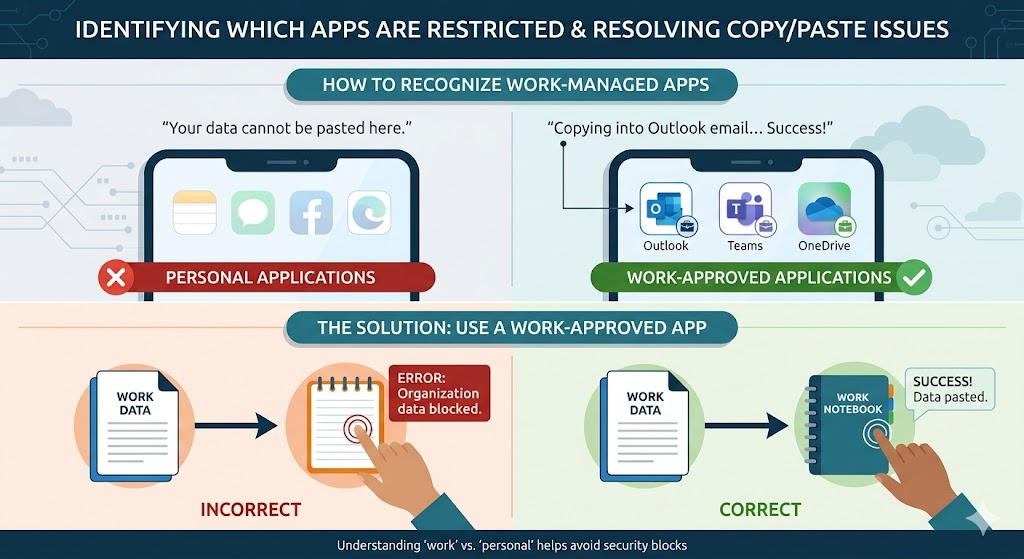
Not all apps are treated the same way on your device. Usually, apps like Outlook, Teams, or OneDrive are strictly managed by your workplace. If you are struggling with the error “your organization’s data cannot be pasted here,” you are likely using a personal app. Try copying the text into a work-approved app instead. For example, if you cannot paste into your personal notes, try pasting it into a work-related notebook app. Understanding which apps are “work” versus “personal” is the fastest way to get your work done without seeing that pesky security block.
The Role of IT Departments
Your company’s IT team is responsible for setting these digital boundaries. When they show you the message “your organization’s data cannot be pasted here,” they are simply following the company’s security policy. They use these tools to prevent cyberattacks and data theft. If you feel that your work is being blocked too often, it is perfectly okay to ask your IT desk for help. They might be able to change a setting or explain why your specific app needs to be protected. They are there to keep the organization safe and help you stay productive every single day.
Troubleshooting Common Paste Errors
If you keep seeing “your organization’s data cannot be pasted here,” try restarting your device first. Sometimes, the software just needs a quick refresh to recognize your permissions. You should also check if both apps are updated to the latest version. Older apps might not understand the newest security rules, which causes them to fail. If that does not work, try to copy a smaller amount of text or use a different method to share the file. Often, a simple software update is enough to fix these common copy-paste errors and get you moving again.
Managing Data Between Work and Personal Profiles
Modern devices let you switch between a work profile and a personal profile easily. If you see “your organization’s data cannot be pasted here,” you might be trying to cross these lines. Try to stay within your work profile when handling business information. This keeps everything organized and stops the security software from getting confused. If you really need to move a file, use the official “Share” button inside the app. This method usually follows the correct security rules, unlike trying to copy and paste the text manually into a new place.
Best Practices for Secure Copy-Pasting
Following a few simple habits can stop the error “your organization’s data cannot be pasted here” from slowing you down. First, always stick to using apps that your company officially supports. Avoid trying to copy sensitive data into public web browsers or unofficial chat platforms. If you are unsure, just ask your manager or the IT team. Being proactive about where you put your work files helps everyone stay safe. It also shows that you care about company security, which is a great trait for any professional to have while doing their job.
What to Do If You Are Still Blocked
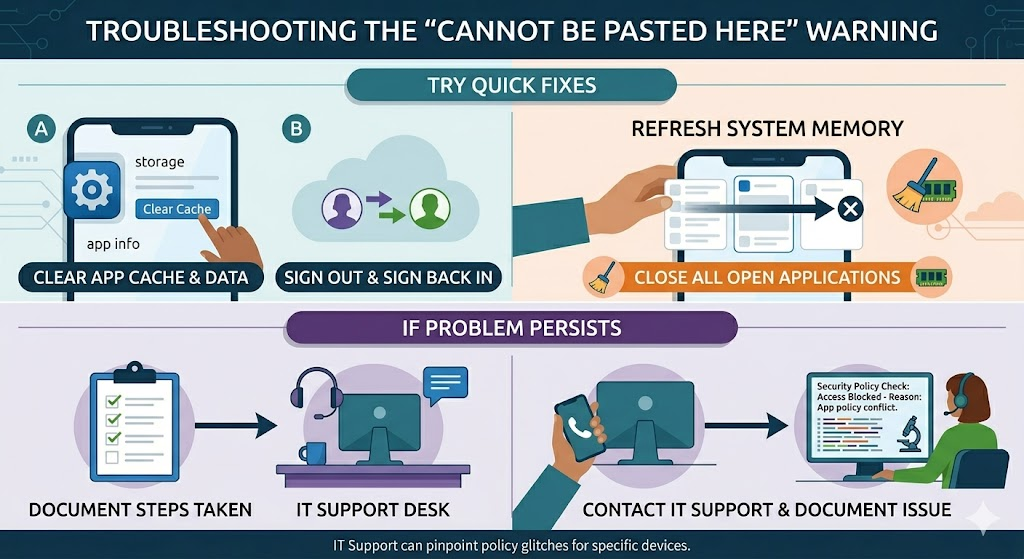
If you are still getting the “your organization’s data cannot be pasted here” warning, don’t worry. There might be a temporary glitch in your device’s security policy. Try to clear the cache of the app you are using or sign out and sign back in. Sometimes, simply closing all your open apps helps clear the memory. If the problem continues, document the steps you took and reach out to your IT support desk. They can see exactly why the system is blocking you and provide the right fix for your specific device and situation.
Conclusion
The error “your organization’s data cannot be pasted here” might seem annoying, but it is a key part of staying secure at work. By following your company’s rules, you help protect vital information from accidental leaks. Remember that these systems are designed to keep you safe from threats while you work. If you encounter the message again, take a deep breath, use a work-approved app, and keep going. Do you have more questions about your company’s security settings? Feel free to reach out to your IT team for more specific advice on how to stay productive today!
Frequently Asked Questions
1. Why does my phone keep saying “your organization’s data cannot be pasted here”?
This happens because your company has enabled security policies to prevent moving work data into non-approved personal apps.
2. Can I turn off this security feature?
No, you cannot turn it off yourself. It is managed by your company’s IT department to keep business data secure.
3. Is there a way to move my work data legally?
Yes, use the “Share” function within your work apps, which allows for secure data movement between approved applications.
4. Will this error block me from working?
It only blocks you from pasting into unauthorized apps. You can still work normally within your managed work applications.
5. Should I contact my IT support about this?
Yes, if you feel the policy is blocking you from doing your daily tasks, your IT team can review your specific permissions.
6. Does this affect my personal data on my phone?
Generally, no. This policy only affects “managed” work apps and does not change how you use your own personal apps.